You need slides by Friday. You open a search tab and drown in AI slide tools you can't compare. Every page says it's the best, and none of them tell you the thing that matters most: whether you can still change the slides afterwards.
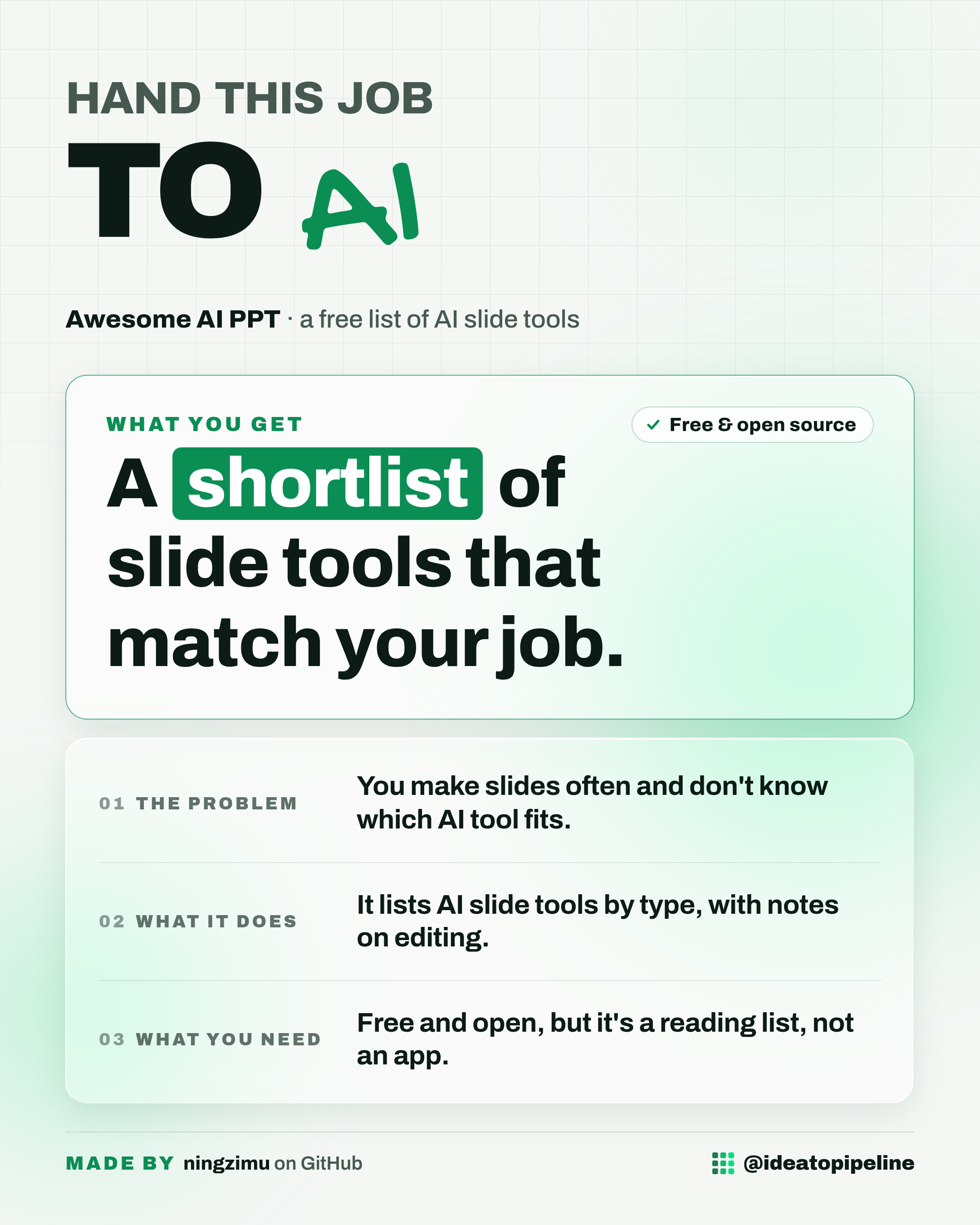
This guide covers Awesome AI PPT, a free list on GitHub that sorts AI slide tools by how they work. You'll see what's in it, how the grouping helps you choose, what the built-in helper does, and the honest catch before you rely on it.
What Awesome AI PPT is
It's a curated list of projects about AI slides, PowerPoint automation, PPTX editing and slide workflows. Curated means someone picked entries on purpose. The page says it plainly: this is a selected list, not a directory of every related link.
The focus is on GitHub repositories and technical projects that help an agent or a developer create, edit, convert or check presentations. An agent here means an AI assistant that can carry out steps for you, and a repository (repo) is a project folder hosted on GitHub.
It works like a well-kept shelf instead of a junk drawer. Tools sit in groups by how they make slides, and each entry carries a short note and a label about editing, so you can compare instead of guessing.
There's also a website for the list, plus a helper skill described further down.
What you can do with it
- Browse tools grouped by how they work: HTML-style decks, image-generated decks, decks built directly as editable PPTX files, and the underlying PPTX libraries and automation building blocks.
- Check each entry's editability note before you commit. Entries carry labels such as editable, partly editable, image-only, or source code editable.
- Read a one-line description of each project, plus tags like templates, conversion, PDF, video, academic or automation, so you can spot the ones that match your job.
- Use the helper skill to get personalised suggestions. You tell an AI your situation, materials and preferences, and it uses the list to recommend tools.
- Use the same skill to help contribute: the page says it can assist with submitting an issue or preparing a pull request when you want to add a project.
How to set it up
There's nothing to install to read the list. Open the project page and browse the sections. Setting up the helper skill is the technical part, and it runs in a terminal, which is a text window where you type commands instead of clicking.
If a terminal feels out of reach, ask someone comfortable with developer tools to run it for you. The steps below follow the source's order.
- Open the project page at Awesome AI PPT and read the list first. That alone may be enough.
- If you want the helper, the page offers two routes. The easy one is telling your AI assistant to install the awesome-ai-ppt skill, using the link the page gives for the skill folder.
- The manual route is a command you run in a terminal. The source shows it as a single line starting with
npx -y skills@latest add ningzimu/awesome-ai-ppt, followed by flags for the skill name, the agent (the example uses codex) and a global install. - Once it's in place, ask in plain words. The source's own examples: you want to turn a technical article into an editable PPT and care about later changes and automation, so you ask the skill to recommend the most suitable project. Or you ask it to check whether a GitHub project belongs in the list.
- For more detail, the page points to a dedicated agent setup page linked from the project.
Those commands are exact, so copy them from the source rather than retyping from memory.
What it costs
Reading the list is free. The tools it lists are separate projects with their own terms.
The source doesn't list a price. Check the official page before you rely on it.
The same goes for every tool in the list. The list itself doesn't quote prices. One entry, for example, notes a noncommercial licence that allows content monetisation but forbids reselling or embedding it in commercial software. Read each project's own terms before you build a business process on it.
Who it's for
Good fit if you make decks regularly, you're willing to read short project descriptions, and you want a starting point that's already sorted, especially if you care about whether the result stays editable or whether a tool can plug into an AI assistant.
Skip it if you want a finished app you press start on. This is a reading list, not a slide maker. It's also a poor fit if you need a tool that works without any technical setup at all, since many entries are skills and libraries aimed at agents and developers.
Good to know
The honest catch: this is a list about tools, not a tool. It won't make a deck for you. You still pick a project, read its own instructions and set it up.
It's curated, so it isn't complete. The page says it focuses on repos and technical projects that help an agent or developer create, edit, convert or check presentations. General AI writing tools without a slide workflow, image generators without slide output, plain slide frameworks without AI or automation, template marketplaces without an open repo, and archived or empty repos are all left out.
There's a bar for entry: a GitHub repo usually needs at least 10 stars to make the main list. Sub-folders or skills inside a bigger repo are excluded when the parent's stars don't reflect the slide workflow itself.
Grouping is by main workflow, not by export format. The page is explicit that being able to export PPTX doesn't put a project in the PPTX group, and that labels like skill, editable PPTX or PPTX export don't decide the category on their own. So read the description, not just the label.
Editability labels vary in strength. Editable, partly editable, image-only and source-code-editable mean different things. Image-only decks are pictures of slides, so plan on rebuilding text by hand if you need changes.
Finally, the list changes. Entries are contributed through pull requests, which are proposed edits to a shared project, and issues, which are reports or suggestions. Check the project page for the current version rather than a copy you saved months ago.