If you spend your day clicking the same buttons on the same websites, you have probably wondered whether a machine could do it for you. This guide looks at one tool that aims at exactly that.
It covers what agent-browser is in plain words, what you can do with it, the setup steps the official page describes, what it costs, and the honest catch. No technical background assumed.
What agent-browser is
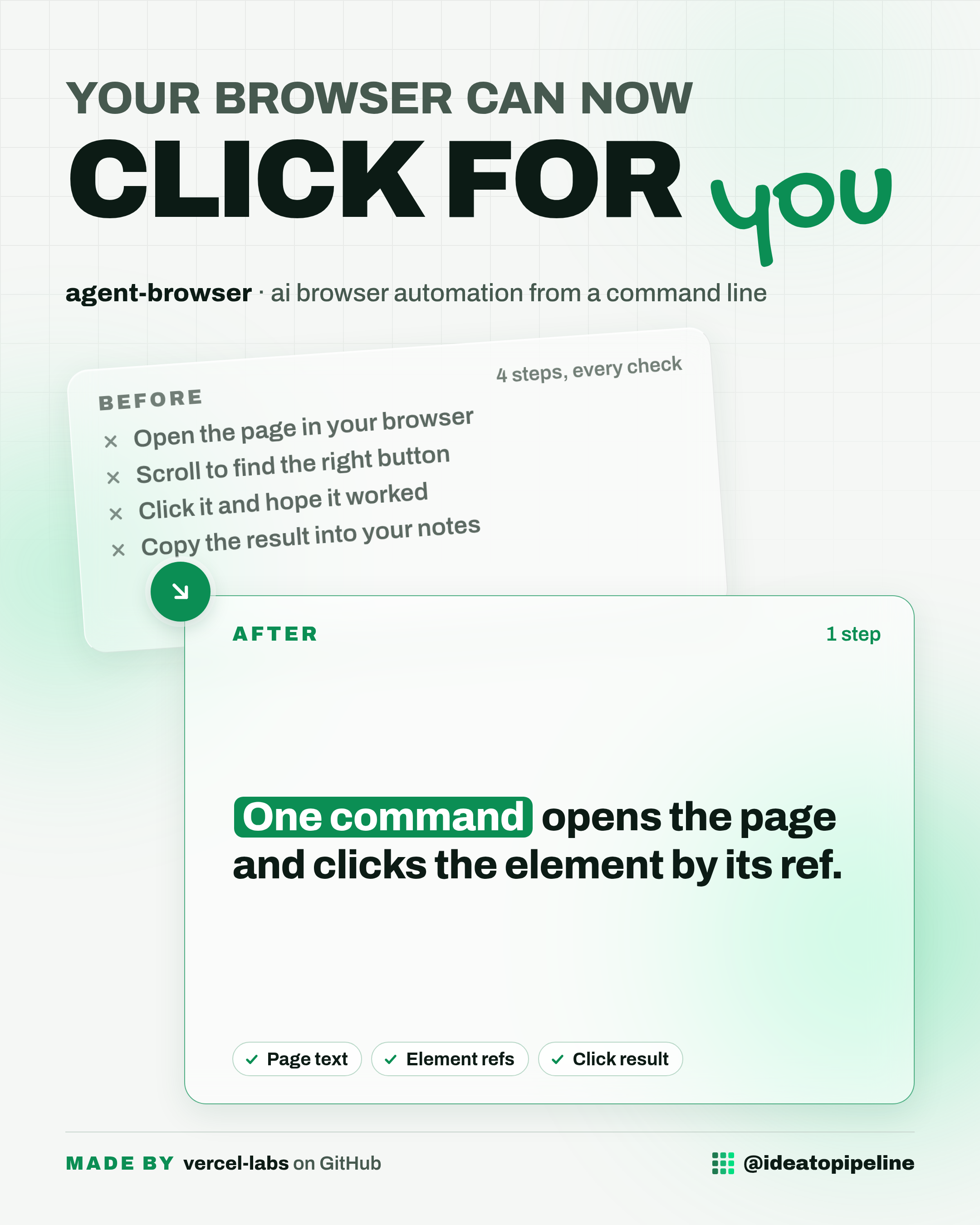
agent-browser is a command line tool that gives an AI agent a browser it can drive one command at a time. A command line (often called a shell or terminal) is a plain text window where you type instructions instead of clicking buttons.
It works like a remote control for a browser. You press one button, the browser does one thing, and you look at the result before pressing the next button.
The key idea is the snapshot. When you ask for a snapshot, the tool returns the page as compact text, and each element on the page gets a short reference such as @e1. The agent acts on that reference, reads the page again to check what happened, and repeats. The browser stays open between commands, so each step is one short shell call.
It is a native Rust CLI. Rust is a programming language, and native means it is built to run directly on your computer rather than inside another program. You do not need to write Rust to use it, but you do need to be comfortable typing commands.
What you can do with it
- Open a page and read it as an accessibility tree, which is a structured text view of the page with a reference for each element. For example, the snapshot for example.com shows a link called "Learn more" with the reference e1.
- Click, fill in fields, type, press keys, hover, focus, select, check boxes, scroll, drag, and upload files. The tool lists all of these as interact commands.
- Check the result after each action with a command like get url, so you are not guessing whether something worked.
- Take screenshots, save a page as a PDF, record, download files, and compare pages with a diff command.
- Target elements in several ways, not just by reference. CSS selectors, text, XPath and semantic locators also work, for example finding a button by role and clicking it by name.
How to set it up
Setting this up is technical. You will be typing commands in a terminal and installing software. If that is not your comfort zone, this is a job for a developer or an IT helper, and the steps below are what they would follow.
- Install the tool with npm, which is a package manager for JavaScript software. The command is npm install -g agent-browser.
- Download the browser it drives, called Chrome for Testing, with agent-browser install. The official page says this is needed the first time only.
- On a Mac you can use Homebrew instead for the first step, then run agent-browser install. On Linux, agent-browser install --with-deps also installs the browser's system libraries.
- If you do not want to install anything, the page shows a no-install option: npx agent-browser open example.com.
- Once installed, the quick start is five commands. Open a page with agent-browser open example.com, then take a snapshot with agent-browser snapshot -i to get the interactive elements and their references.
- Act on one of those references, for example agent-browser click @e1.
- Check the result with agent-browser get url, then finish with agent-browser close.
One rule matters from the first minute: references describe the page at the time of the snapshot. After the page navigates or changes, take a new snapshot before using references again.
The official page also points to a full walkthrough in its quick start documentation, and says project installs, building from source, upgrade and doctor are covered in its installation docs.
What it costs
The source doesn't list a price. Check the official page before you rely on it.
The tool is published under the Apache-2.0 license, which is an open source license that allows use and modification. That is a licensing detail, not a price list, so confirm the current terms yourself.
Who it's for
Good fit if you are comfortable with a terminal, or you have someone technical who can set it up, and you repeat the same website actions often enough that handing them to an AI agent would save real time.
Skip it if you want buttons, menus and a screen you can click. This tool runs from a command line, not a visual dashboard you point at.
Good to know
The most useful detail is also the least obvious. A click fails, instead of reporting success, when the target is hidden, disabled, outside the viewport, or covered by another element such as a consent banner. That is a feature, not a bug: a quiet failure would be worse. The fix the page gives is to dismiss the covering element, take a new snapshot, and retry.
Under the hood, each command goes to a background daemon, a small helper program that starts on your first command and controls the browser. Each session gets its own daemon and browser. By default the daemon closes a headless browser and exits after one hour without commands, saving state first when session persistence is configured. Headless means the browser runs without a visible window.
Chrome for Testing is the default browser, but the page lists alternatives: attaching to a running Chrome, other engines, Mobile Safari in the iOS Simulator, or a cloud browser provider. Native binaries ship for macOS, Linux and Windows.
For AI agents, the tool ships skills that match its version, and there is an MCP server for MCP clients. Those are advanced options. The honest catch for a non-technical reader stays the same: this is a command line tool, it needs setup, and it is built to be driven by an AI agent rather than by hand.